
Wave.video is an online video editing tool with tons of helpful features.
They have an endless supply of all kinds of templates that will make your videos look great in no time!
I came across this software after Vidnami was acquired by Godaddy.
I needed something that had similar functions that was easy to use and a good price point.
I tried many options but, to me at least, Wave.video was head and shoulders above the rest.
I made a long Vidnami Alternative video and post about this.
Who needs a Video Creator?
Video marketing is huge on social media these days.
But creating a video can be tricky.
Video editing even more so.
So many folk invest in on of the many video creators that are for sale.
These allow users to create videos using video templates.
What’s more, people can add animated effects and add music in a few clicks.
This makes it much easier for small businesses to get into the video marketing world without a major investment.
Whether you want a few videos, 100, 200 or even more, video creators make this possible for all.
New technology has meant that some of them have drag and drop functionality and even video hosting.
Wave.video is an online tool that we will look at in this post.

Wave Video Review
In this Wave video review, I’ll begin by looking at the features and functionalities of this software.
And after that I’ll give you a run through of the video creation process.
The User Interface
Upon logging in the UI is crisp and intuitive and makes it very user friendly.
It’s also ad free.
They have thier own tutorials on how to use the software, a live support desk in the bottom right of the screen and everything is easy to find.
From the menu at the top, you”ll see several main categories and we will look at these now.
Wave.Video Creative Assets
These can be split into 3 main sections:
- Stock libraries
- Visual effects
- Graphic elements
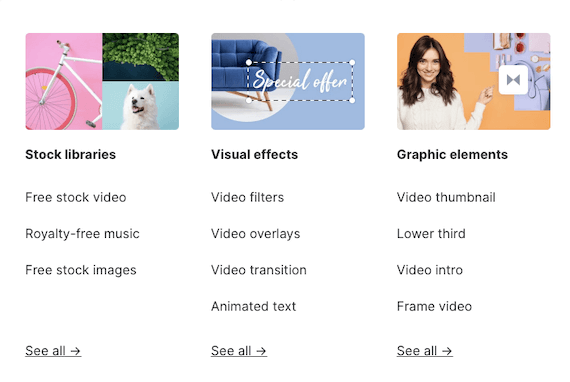
The Stock library is where free and paid images and videos are.
As you create your video, the software uses its AI to select media for you.
You have the option to switch out these media to other ones from their extensive library meaning you never have to use any of your own images or video files if you don’t want to.
having access to royalty free music is also very handy.
Should you want to make your video a little higher level, then you can use any of their video effects.
Transitions between scenes for example.
Or adding a lover third with your own name and/or branding.
Wave.Video Tools
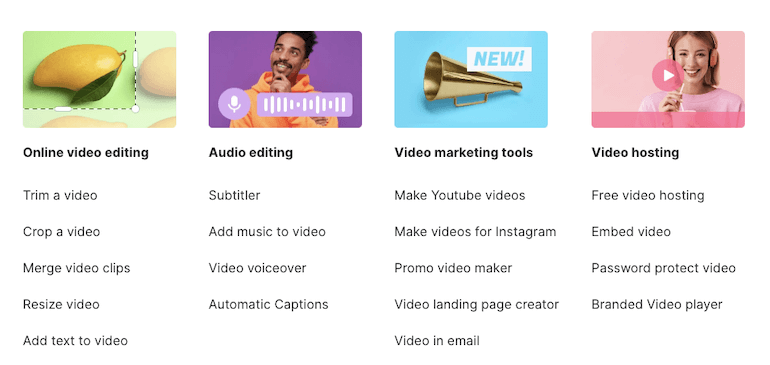
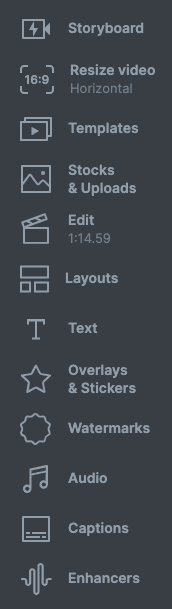
As the image below shows, there are so many things you can do within the software.
You won’t need them all so I’ll cover a few popular choices.
Video And Audio Editing Introduced
Your first video will not be good enough off the bat.
You’ll need to make some edits.
Perhaps trim the video length or certain scenes.
Maybe you want to resize it for Pinterest (vertical) or Facebook (square)?
To me, the audio editing feature is brilliant.
You can upload your own voiceover file and synch it to the slides.
Or use one of the auto voices [Though they sound quite robotic and if you want to use an auto voice, then look into Well Said Labs.
The auto captions filter is great too if you do not want to type out any text, but instead use that.
Just be careful if you have a strong accent.
Video Hosting
Wave.video includes a video hosting service that gives you full control of your content and how it’s displayed to viewers.
You can customize the player with colors, change its appearance or choose an image for the perfect first impression on potential customers!
There are no ads in Wave – just ad-free videos hosted without any outbound links.
To be honest I have not used this function.
If I want traffic, nothing beats YouTube.
For my training, I use Vimeo Pro for a more secure and professional look and feel.
But if you are paying for Wave.video, and want to somewhere to host your videos, why not try theirs?
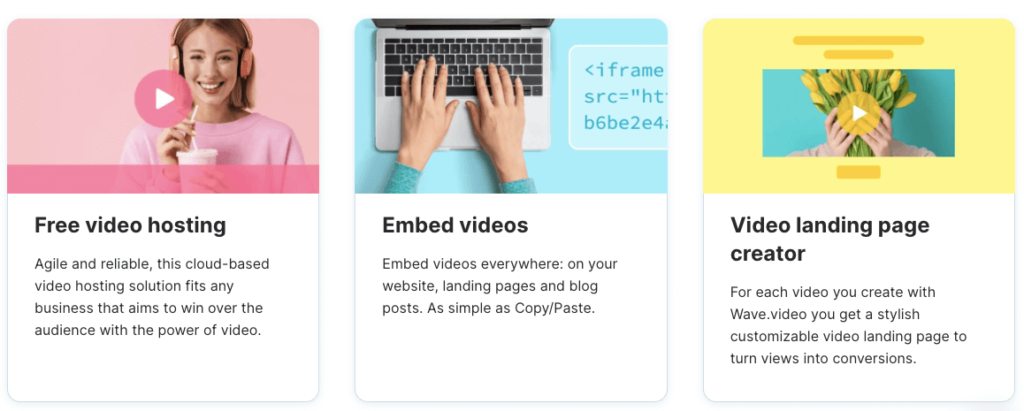
Here are some of the features:
- Fully hosted in the cloud
- Password protection option
- Branded video player
- An embed function
- Video landing page creator
In fact, just going over these makes me want to try it.
And by the time you are reading this review, perhaps I’ll have made the switch.
Anyway…
What Templates Are Available?
Wave.video comes with a large array of customizable templates.
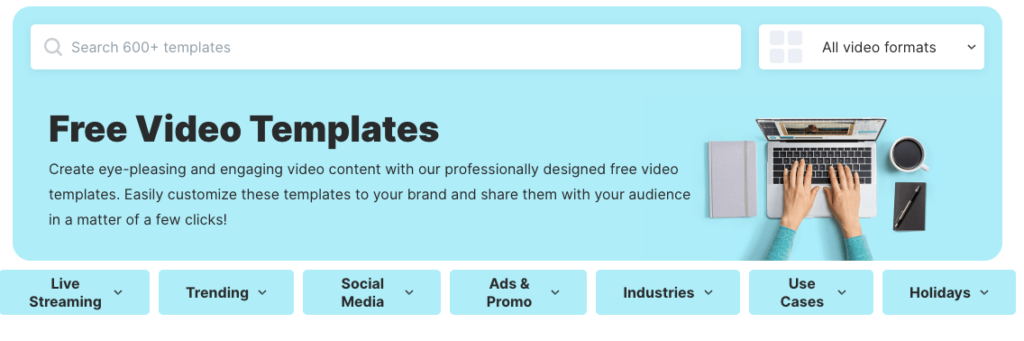
I often find with such tools, that the templates on offer are great, but not for what I am selling or promoting.
But you can edit them to fit so all is good.
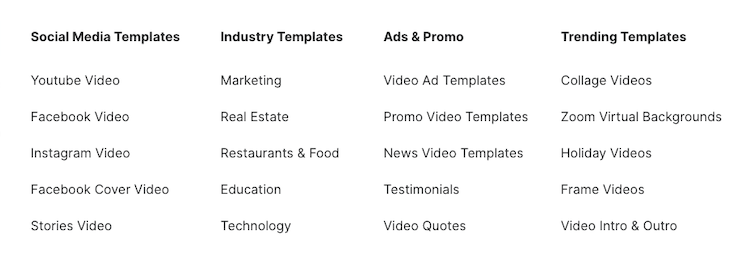
Social Calendar
Wave.video’s free social calendar helps you stay creative and on-brand with your content.
Wave’s professionally designed templates make sharing videos easy too; just select the template to match what type of event is in question from their large inventory.
Ok, So How Do You Actually Create A video?
Assuming you are logged into a paid plan, the first thing to do is to go to ‘My Videos’ and then hit the blue + New Video button.
This will present you with some options.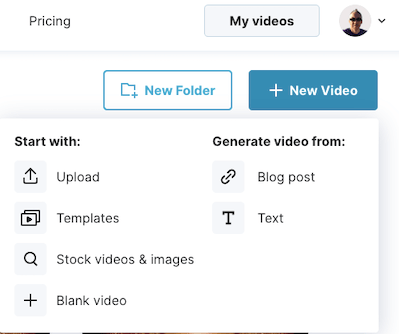
While we all have different goals, and you might be tempted to go with blank video, I personally choose ‘text’.
Then in the box that opens, you paste in some text.
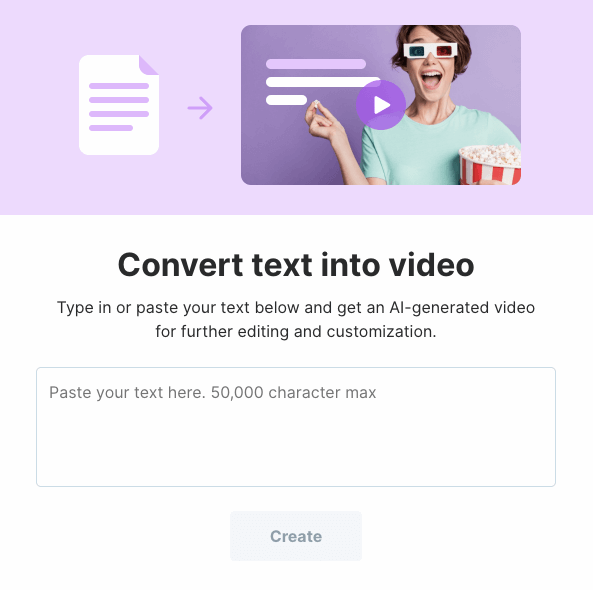
You need at least 3 sentences and for it to be in English.
To be fair, if you cannot manage that then there are bigger issues at play.
Once you hit create, you’ll be asked to choose a format.
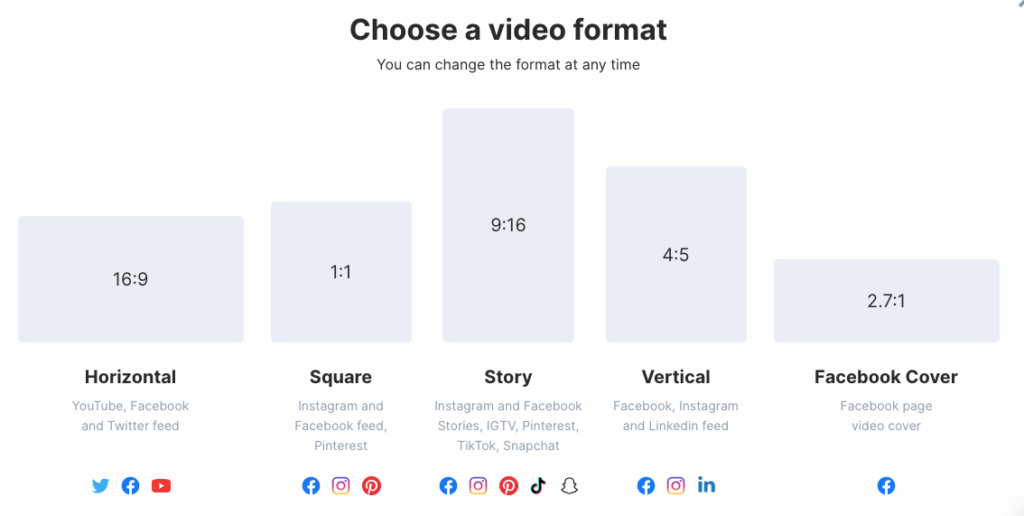
That will depend where you plan to upload the video.
PRO TIP: Always create a video for the social platform you want to use with the correct aspect ratio and upload natively. Never simply share your YouTube link everywhere and expect to get good results.
From here the video will load up.
I’ll choose YouTube but the process works the same regardless of which format you choose.
Negative point: This can take a little while
The Video Editing Process
Once the video has loaded up you’ll need to edit it.
If you compare this to Vidnami, you’ll be disappointed.
Not because Wave.Video is bad, it just has other features and there will be a learning curve.
The Images/Videos
Wave uses AI to pull in clips or images related to your text.
Sometimes it does a good job, other times not
In any case, you’ll want to switch out many images.
Simply click on the image and then click on the ‘replace’ button.
From here you can search for stock footage and choose one of the many free images available.

The Text
This is one area where Wave video excels.
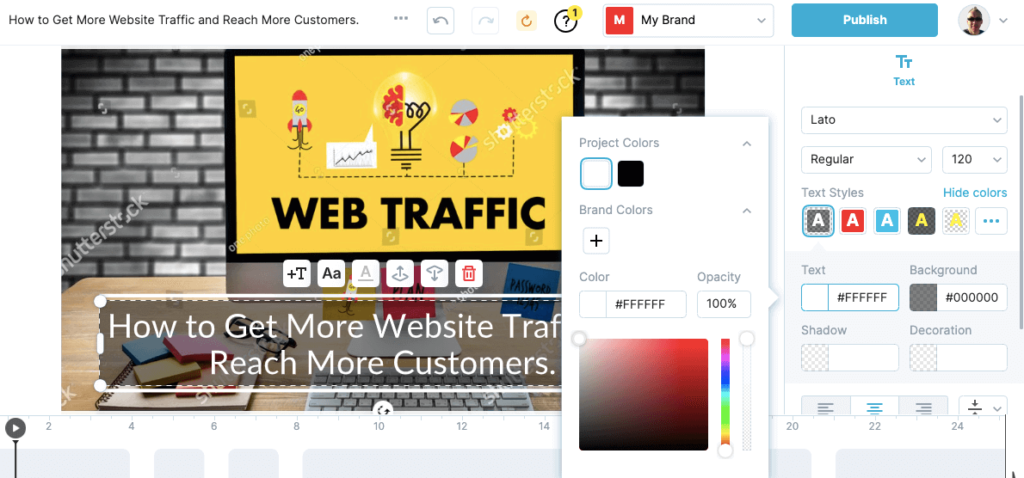
You can drag and drop the text wherever you want it to appear on the video.
By clicking on the text within the video itself, you can change the colours, font, font size and any changes will be applied automatically.
The Audio
By default, Wave will choose a background track.
To get rid of this, simply click it on the timeline and then hit the trash icon.
To add your own audio, you have these three options:
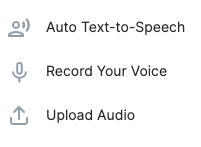
On a personal level, I used the ‘upload audio’ option.
I’ll upload an .mp3 recorded on audacity.
Many folk like to use text to speech.
Wave.Video does not provide realistic voices here.
But then most softwares are awful on this apart from well said labs.
You can, if you wish, record your voice from within the software as well.
Another option, if all you want to do is add music, is to stick with the stock library of royalty free music clips.
Transitions
If you want the switches between scenes.slides to be nicer, you can choose from a multitude of transitions.
You can apply changes to the whole video rather than doing this one by one.
You can also set the length of the transition as well.
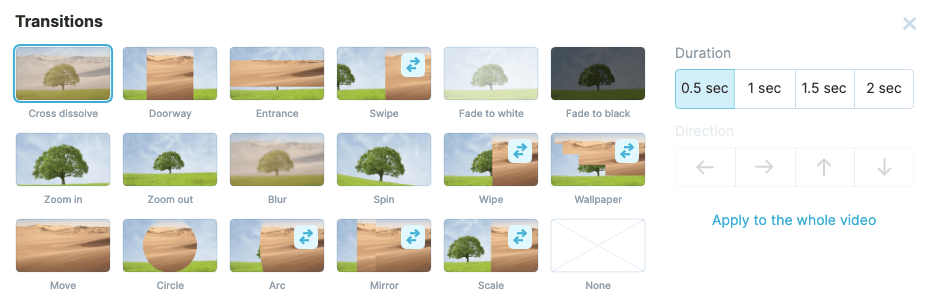
Or you can have no transitions at all.
Up to you.
Extras
There are some extra functions available o you if you want.
For example, you can:
- Add your logo watermark
- Burn in captions (very cool)
- Resize your video for other social media networks
- Add overlays and stickers
- Enhance the audio
More on the captions
Wave.video is a great and innovative way to create captions for your videos because it automatically converts voice into text with high accuracy.
Auto generated captions mean you don’t have to worry about the time-consuming process of manually transcribing speech or creating subtitles.

It also supports two formats: .vtt (WebVTT) format and .srt (SubRip Subtitle Format).
Publish the Video
One you are happy, you can publish your video.
I’d always do 1080P, even if it takes a little longer.
From here, you just need to wait until it is ready.
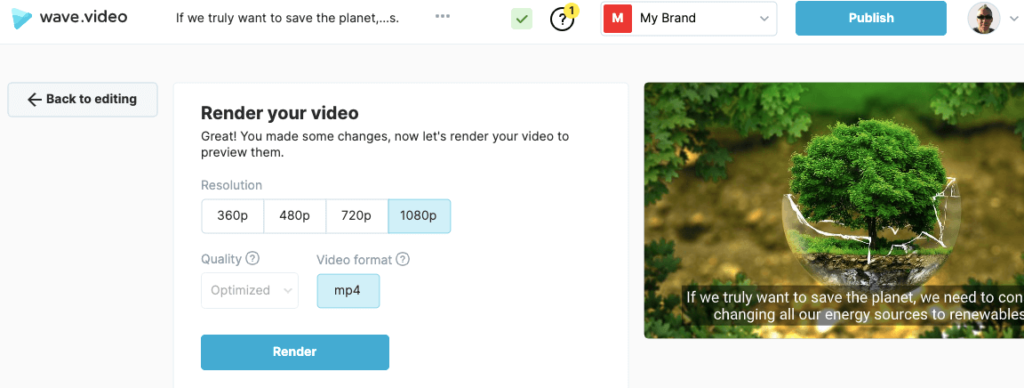
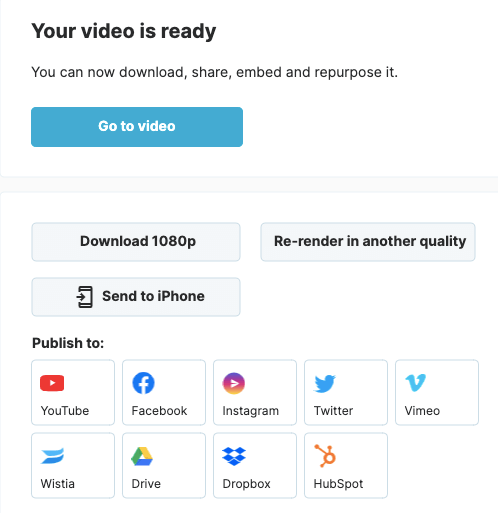
If you have no time, you can close off the page and they will email you when done.
When it’s ready you can download the file or publish it to your connected accounts.
A walkthrough video
This video is actually a Vidnami alternative video but I show you how to use Wave.Video inside.
How Much Is It?
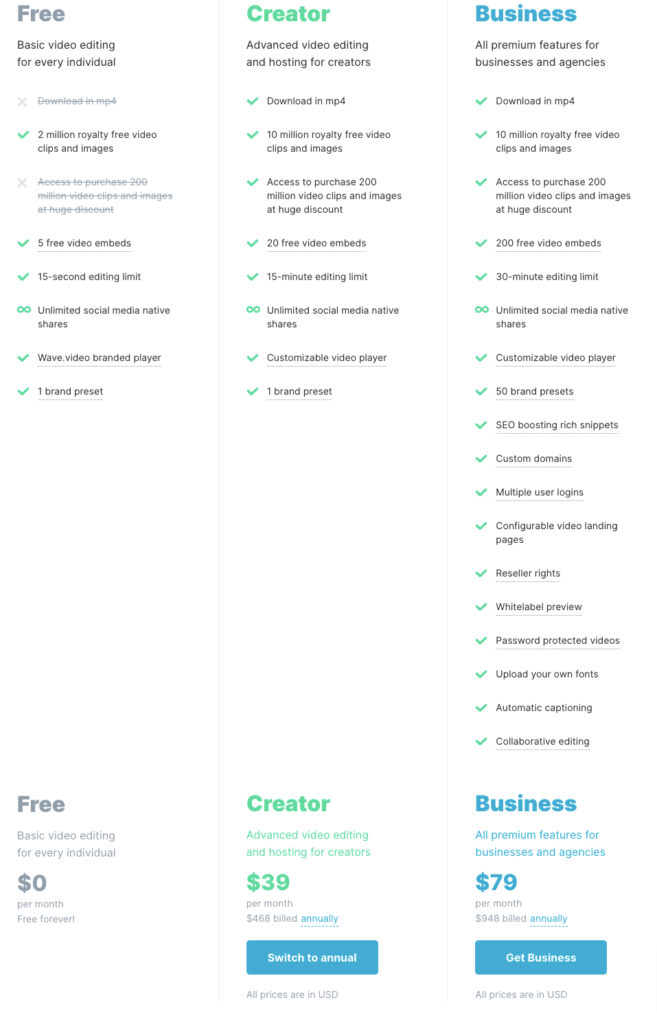
While the free version of anything is tempting, it really is quite limited and your videos will be branded.
That said, the creator. will be enough for most people and there is a substantial discount for an annual plan over a monthly one.
Summary
Wave Video makes video creation and video editing much simpler
Its stock library of royalty free tracks, images and videos is a uge timer saver.
I preferred Vidnami, but that’s been sold and at the time of writing, this is my alternative.
Other tools that I have tested, like InVideo or Flexclip are too limited and as such, are not wave.video alternatives.
With Wave’s added features, it’s an excellent video marketing platform for crafting social media videos and video clips.
And they are adding new features all the time.
It does have some downsides such as the time to load up and being a bit fiddly to edit the slides but overall it does a great job.
Just make sure that you have this or something similar to help you with your video marketing efforts.
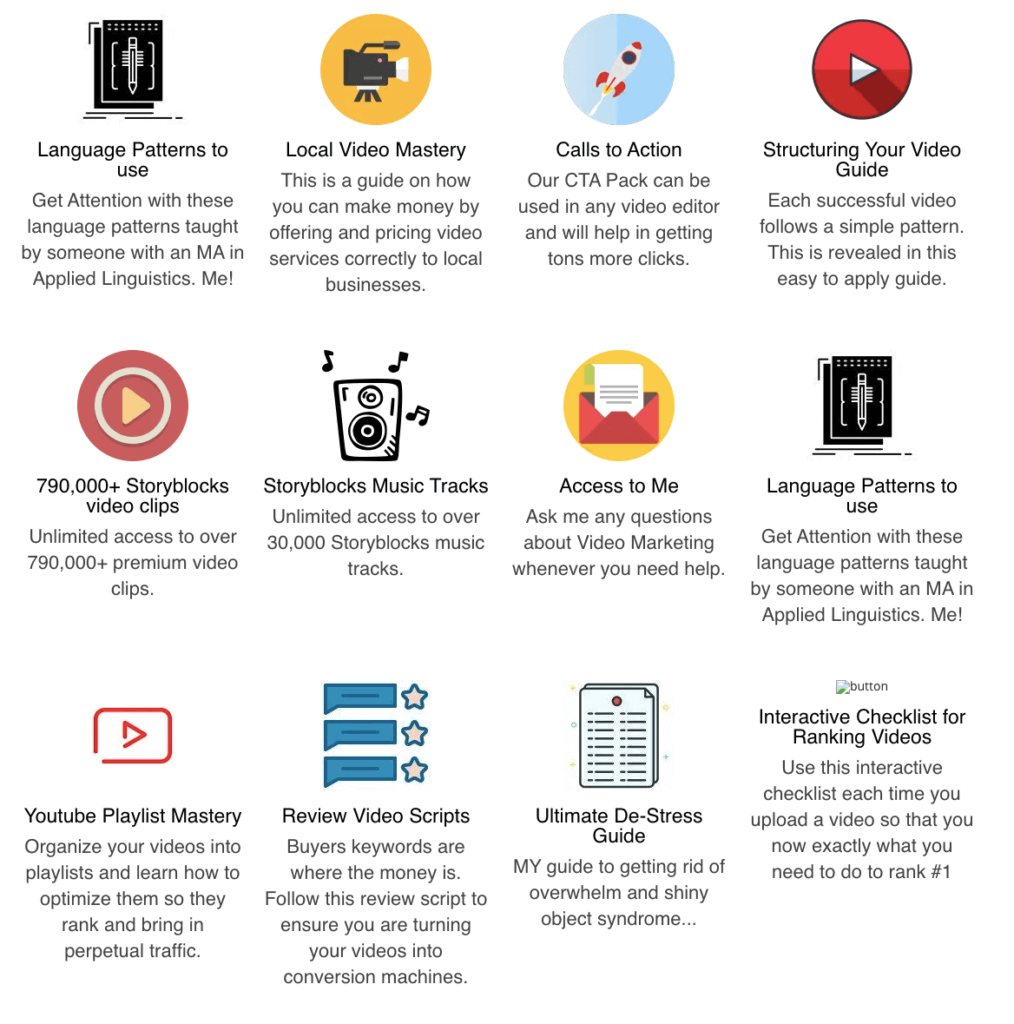
If you have got value from this post, then here are some bonuses I am offering.
Wave.Video Bonuses
If you decide that you would like to grab Wave.Video then I’ll be offering these bonuses to you.
Step 1: Clear cookies and cache
Step 2: Get wave.video here.
Step 3: Send your receipt to me: https://beerswithadam.com/contact/

PS:- That wraps up my article. Please ask any questions below and share this with anyone interested in making videos.
Adam, Great review of Wave Video. i have had it for a number of months and find it handles all of my video needs.
One difference is I have found their “neural” voices work quite well. I agree, the free ones are not worth using. But the paid version’s voices are quite natural sounding.
Thanks Gary and glad you like it too. I’ll look more into the paid voices. I won’t use them personally as I always use my own or a voice actor but others will be glad to know they are good. Cheers!
Hi Adam, this looks interesting.
What do they mean by “15-minute editing limit”?
Hi Britt. I think it means videos can be up to 15 mins in length. That said, for these types of videos it’s more than enough.